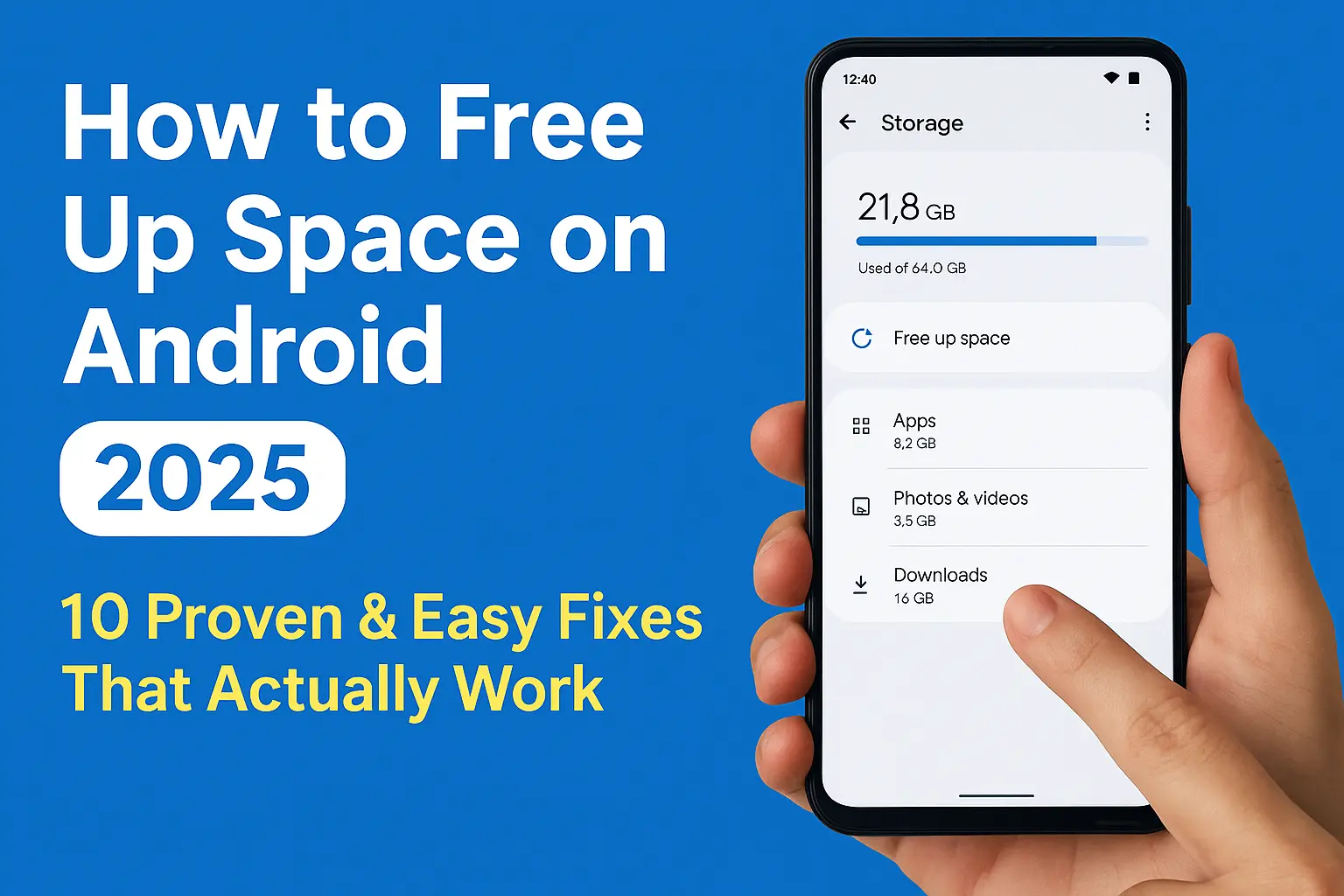
How to Free Up Space on Android in 2025 – 10 Proven & Easy Fixes That Actually Work
Is your Android phone constantly running out of storage? Whether it’s app updates failing or that dreaded “Storage almost full” notification popping up at the worst time, we’ve all been there. If you’re wondering how to free up space on Android without deleting important photos or apps, you’re not alone.
In 2025, Android devices are smarter than ever, but even the latest phones can slow down if the storage fills up. From old cached files to bloated apps hogging memory, knowing how to properly clear space on Android phones has become essential. Luckily, there are safe, effective, and fast ways to reclaim your phone’s performance—and most of them don’t require any third-party apps.
In this guide, we’ll walk you through 10 simple fixes to free up internal storage, remove unnecessary junk, and keep your Android running smoothly. Whether you’re using a budget phone with 64GB or a flagship with 256GB, these tips work on any Android model.
Contents
- 1 🔟 10 Easy Ways to Free Up Storage on Android in 2025
- 1.1 1. 🗑️ Clear App Cache from Settings
- 1.2 2. 📷 Use Google Photos to Back Up & Delete Local Files
- 1.3 3. 🧹 Remove Unused Apps
- 1.4 4. 🧾 Delete Old Downloads
- 1.5 5. 🧼 Use Android’s Built-in Storage Cleaner
- 1.6 6. 💬 Clean Up Messaging Apps (WhatsApp, Telegram)
- 1.7 7. ☁️ Move Files to Cloud Storage
- 1.8 8. 🎥 Compress or Move Large Videos
- 1.9 9. 🧰 Try a Trusted Storage Manager App
- 1.10 10. 🔁 Factory Reset (Last Resort)
- 2 📱 Compatible With All Android Phones
- 3 ❓FAQ – Freeing Up Space on Android
- 4 🔗 Internal Links
🔟 10 Easy Ways to Free Up Storage on Android in 2025

1. 🗑️ Clear App Cache from Settings
Cached data helps apps load faster, but over time it can take up gigabytes of space.
How to do it:
Go to Settings > Storage > Apps
Tap on any app > Clear cache
📌 You can also go to Settings > Apps > See all apps for more detailed control.
2. 📷 Use Google Photos to Back Up & Delete Local Files
Google Photos’ “Free up space” tool automatically removes backed-up media from your device.
Open Google Photos > Settings > Free up space
Tap confirm — done!
3. 🧹 Remove Unused Apps
Use Play Store > Manage Apps & Device > Storage to sort and uninstall apps by size or usage frequency.
4. 🧾 Delete Old Downloads
The Downloads folder often contains PDFs, APKs, and files you no longer need.
Go to Files app > Downloads
Sort by size or date and delete safely
5. 🧼 Use Android’s Built-in Storage Cleaner
Most modern Androids now offer Smart Storage tools.
Samsung: Settings > Battery and device care > Storage
Xiaomi: Settings > About Phone > Storage
Pixel: Settings > Storage > Free up space
6. 💬 Clean Up Messaging Apps (WhatsApp, Telegram)
Large media files pile up fast in chats. Use in-app tools to manage space.
WhatsApp: Settings > Storage and Data > Manage Storage
Telegram: Settings > Data and Storage > Storage Usage
7. ☁️ Move Files to Cloud Storage
Use Google Drive, OneDrive, or Dropbox to offload large files and free internal storage.
8. 🎥 Compress or Move Large Videos
Videos eat up space fast. Use apps like Video Compressor or move to a PC or cloud storage.
9. 🧰 Try a Trusted Storage Manager App
If you prefer apps, tools like Files by Google or CCleaner are great for storage management.
✅ These RAM check and storage cleaner apps are light, secure, and free.
10. 🔁 Factory Reset (Last Resort)
Only if necessary. Backup your data first and reset from Settings > System > Reset Options > Erase all data.
📱 Compatible With All Android Phones
These methods work on:
Samsung (One UI 6+)
Google Pixel (Android 14+)
Xiaomi/Redmi (MIUI 14+)
Motorola, OnePlus, Realme, and more
Whether you’re looking to check RAM usage on Android, clean internal storage, or optimize app performance, these tips will make your phone feel brand new.
❓FAQ – Freeing Up Space on Android
Q1: Is it safe to clear cache on Android?
➡️ Yes, it’s completely safe. It doesn’t delete important data or logins.
Q2: Will deleting Downloads remove apps?
➡️ No. Only files manually saved—like PDFs, APKs, and media—will be deleted.
Q3: Can I clear space without deleting apps or photos?
➡️ Absolutely. Use tools like Google Photos or Files by Google to clear junk safely.
🔗 Internal Links